Full re-export
Minutes/hoursThe entire project goes through export again.
Whole timeline → another exportA new title. A different shot. One last audio note. Keep your exported master and rebuild the revision with PatchRender—so a small fix doesn’t have to mean another full export.
 Adobe Premiere Pro
 DaVinci Resolve Studio⌘ PatchRender Desktop
A full re-export puts the entire timeline back to work. PatchRender starts with the finished master, renders the revision where needed, and reuses eligible video.
The entire project goes through export again.
Whole timeline → another exportReuse the master. Process the change.
Finished master + revised range → new versionIllustrative workflow comparison, not a timed head-to-head test. Suitable small patches can process in seconds; total turnaround also includes editor export, analysis, assembly and checking. Media, edit size, hardware and processing mode affect the result. Some jobs require a full render.
Prepared desktop title-revision demonstration on macOS, October 15, 2026. This interval excludes making and exporting the patch and independent verification. It is not an end-to-end speed promise or a matched full-render benchmark.
Your exported video becomes the starting point. Supply the revised section; PatchRender builds the next version using eligible original video and rendered regions where needed.
Begin with the finished file you already have.
Illustration, not a performance measurement. Rendered regions can extend beyond the edit; some jobs need a full render.

 ORIGINALREVISED
The export says “Race Day.” Then the client asks for “Race Ready.” Make the title change in Premiere Pro and send the revised range through PatchRender. A small request shouldn’t mean starting the entire export again.
Move the divider to compare the original and revised output at the same point in time.
A client-revision scenario, shown with a real title edit and actual output. Processing time and the amount of reused video depend on the job.

An hour-long conversation shouldn’t have to mean another hour-long wait.
A guest’s name. A sponsor card. A last-minute audio correction. Long-form video makes small changes expensive when the whole timeline has to render again.
Keep the exported episode, prepare the revised section, and let PatchRender reuse eligible video around it. Less repeated rendering. A faster route back to delivery.
See the revision workflowTurnaround varies with media and job size; full-file assembly and review still take time.
Picture, sound, and the handoff around them. Keep the tools for finishing a revision in one place.
The picture is finished. The sound needs another pass. Choose the audio change you need, then build a revised master from the video you already have.
Bring in an updated full-length mix and replace the audio across your video.
Replace audio in a selected time range—a corrected line, a revised cue, or a short section of your mix.
Use the desktop audio overlay mode to mix a prepared voiceover with existing master audio.
Deliver the picture with the audio still organized.
Export your video with timeline stems from your Premiere Pro or DaVinci Resolve project. With PatchRender, deliver a MOV that keeps dialogue, music and effects as separate named audio tracks instead of only a flattened mix.
Stems must be supplied separately and aligned to the master. This workflow embeds AAC tracks in a MOV; it does not separate a mixed soundtrack or export individual WAV files.
Premiere Pro or DaVinci Resolve Studio. Keep the familiar panel close to your timeline, with the desktop workspace ready for more detailed revisions.
+Link your exported master, mark the revised range, and send the change from your editor. PatchRender brings this core panel workflow to Premiere Pro and DaVinci Resolve Studio.
Complete Premiere panel interface, rendered from its installed layout with sample project details. Resolve offers the same core workflow; host-specific controls can differ. Editor licenses are separate.
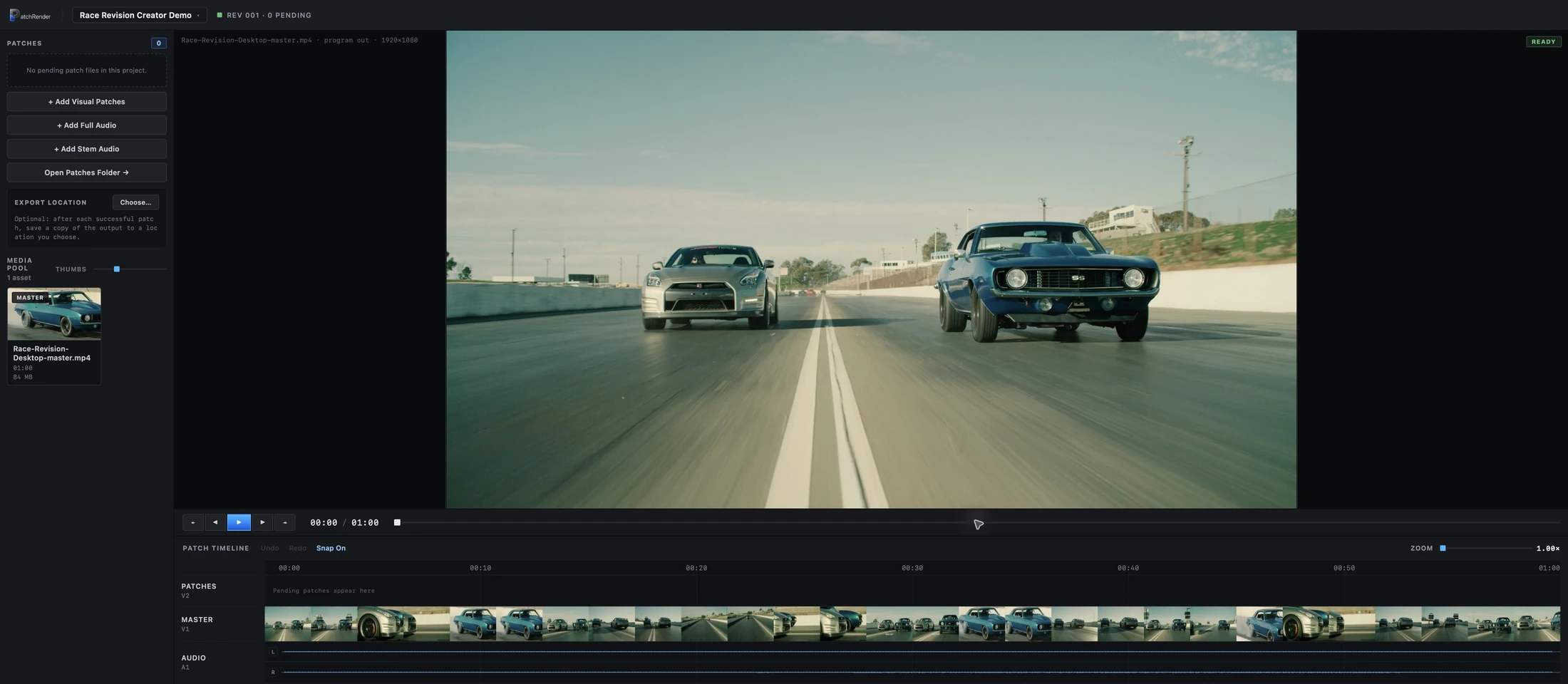
Start from an exported master and manage patches directly. The desktop console brings the media pool, timeline, audio options and revision history together.
Actual macOS application capture. “Console” here means the desktop workspace, not a separate command-line product.
The Resolve panel provides a bridge from DaVinci Resolve Studio into PatchRender’s revision workflow, with master linking and marked-range operations.
Resolve integration is present in the project. This page’s demonstrated title edit uses Premiere Pro; it is not a Resolve validation result.
Individual plans are coming soon.
Explore Business & Enterprise below.
Individual plans are being prepared.
Pricing to be announced
Individual plans are being prepared.
Pricing to be announced
Equip your editing team, or explore licensing the PatchRender engine inside your own systems. Start with a workflow review and build an annual agreement around a tested scope.
Deployment, usage and services defined together.
Review business licensingLicensing proposal. Capabilities and service commitments require agreement.
Individual plans are coming soon. The crossed-out zeros are placeholders, not a free offer. Business & Enterprise workflow reviews remain available.
The essentials before you bring PatchRender into your workflow.
Turn your existing exported video and revised material into an updated master. Make the edit in your editor, send the changed range to PatchRender, and assemble your next revision.
PatchRender reuses eligible video from your existing master and processes the regions needed for your revision. The source format and compression determine how much footage can be reused.
Focused changes to a finished video—such as a title correction, a replacement shot or an audio update—are a natural fit, especially when the rest of the master is already approved.
Replace the entire soundtrack, update a selected section, layer a voiceover over existing audio, or deliver your video with separate named audio stems.
Work with the Adobe Premiere Pro or DaVinci Resolve Studio integrations, or use the standalone macOS desktop app. Both subscription plans include the desktop app and editor integrations.
PatchRender’s desktop workflow processes your video locally, using the media and project files on your computer.
We’re preparing the individual plans for launch. Business & Enterprise workflow reviews are available now.
Explore the workflow guide, or visit Business & Enterprise to prepare a workflow review. Individual plans and public downloads are being prepared for launch.
Make the revision. Deliver the update. Get your time back instead of waiting through another full export.